Collaboration in Google Documents
Google Document Collaboration requires Administrator configurations. Reach out to your administrator to make sure the feature is configured for you using your Google business email account.
Make sure that Pop-ups are allowed for Reliance on your browser.
Creating a new Google Document
To create a new Google Document inside Reliance:
- Open a Reliance document.
- On the intended attachment field, click on the Create New + button. The Create New Collaboration Document dialog will be displayed. The Attachment Name field will default to the "(Document Type) (Document Number) Collaboration" e.g., "Validation Test 001 Collaboration" if the Reliance document is saved and "(Document Type) (New) Collaboration" e.g., "Validation Test (New) Collaboration" if the Reliance document is still new.

If you are not already logged in or if your business session has expired, you will be prompted to log into your business account.
- Optionally, change the Attachment Name, considering that you cannot use a name matching the tab name of the Reliance document.
- Click Continue. The Reliance document will be saved, and the new Google Document will open in a new Reliance tab.
The Google Document is now available for collaboration with authorized users. Here is a short video!
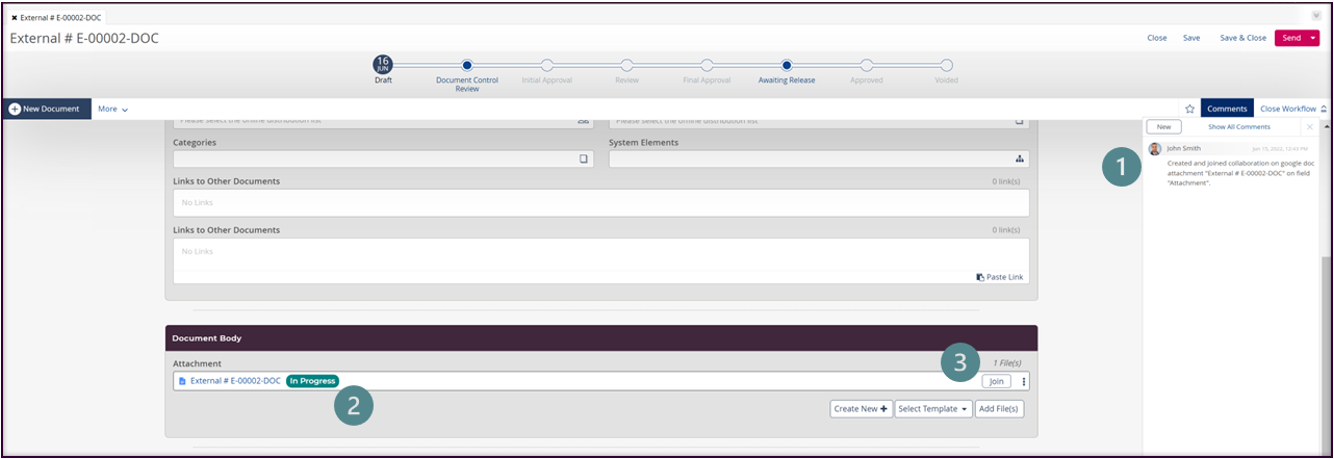
If you switch back to the Reliance document, you will notice the following changes:
|
|
The system has added a comment indicating that you have created the Google Document and joined the collaboration session. The comment will include the created Google Document title and the attachment field name hosting it. |
|
|
You will find a link to the created Google Document within the attachment field. It will show the status (In Progress) to indicate an active collaboration session. |
|
|
Because you have edit access, you will see the Join action. Any user who has edit access will see the Join action so they can join and collaborate. |



Google Document Actions
Delete a Google Document.
Click the three dots menu  to the right of the Google Document link and select Delete. Click Remove on the confirmation prompt. This will refresh the Reliance document to permanently delete the Google Document. A comment about the delete action will be added to the Reliance document.
|
|
Make sure your Administrator defined your valid email address from the used domain set in the User Profile. Users with invalid email addresses will be promoted with a validation message when the user attempts to delete a Google Doc. |
See file info.
Click the three dots menu  to the right of the Google Document link and read the file info.
Download
Unlike other attachments, a Google Document does not have a download action. You can download a Google Document through Google Docs editor and using the standard Google Docs toolbar.
Google Document Sharing is prohibited.
Unlike other attachments, a Google Document does not allow Copy URL, because you can't share it outside Reliance. The Share action on the Google Docs editor is blocked too.
Google Documents cannot be renamed from Reliance.
Google Documents do not have a Rename action; however, you can rename it through the Google Docs editor.
Google Docs Editor within Reliance
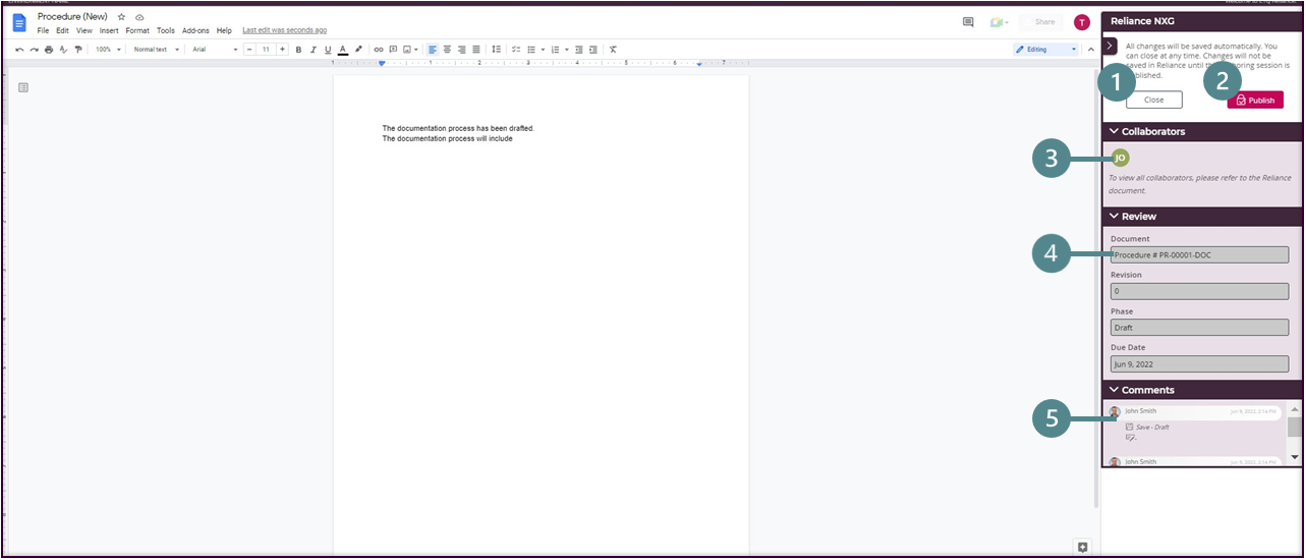
Google Documents created within Reliance will open within a new Reliance tab. In addition to the awesome editing tools Google Docs provides you with, Reliance Pane is available with the information and actions detailed below.
|
|
Close Action Click on the Close action to leave the collaboration session without publishing the document. |
|
|
Publish Action Click on the Publish action to end the collaboration session for all collaborators and publish this Google Document revision. You can't route the Reliance document forward until you publish all Google documents and end their collaboration sessions. |
|
|
Collaborators This section shows the users currently assigned to the Reliance document. |
|
|
Review This section shows the following information about the related Reliance document: Type & Number, Revision, Current Phase, and Due Date. |
|
|
Comments These comment records are looked up from the Reliance document. They show the changes made to the Reliance document because of using the Google Document. |





Joining a collaboration session on a Google Doc
- Open a Reliance document.
- Click Join next to the intended Google Document on the intended attachment field. The document will open in Google Docs Editor, where you can start your editing and see other collaborator changes.
|
|
You will be prompted to log into your business account if you are not already logged in or if your business session has expired. Notice that clicking the Google Document link within the attachment field after a collaborator Joins the collaboration session will open the document for editing. However, clicking the link before Joining the collaboration session will open the document in read-only mode even if the user is assigned to it. |
Viewing a Google Document
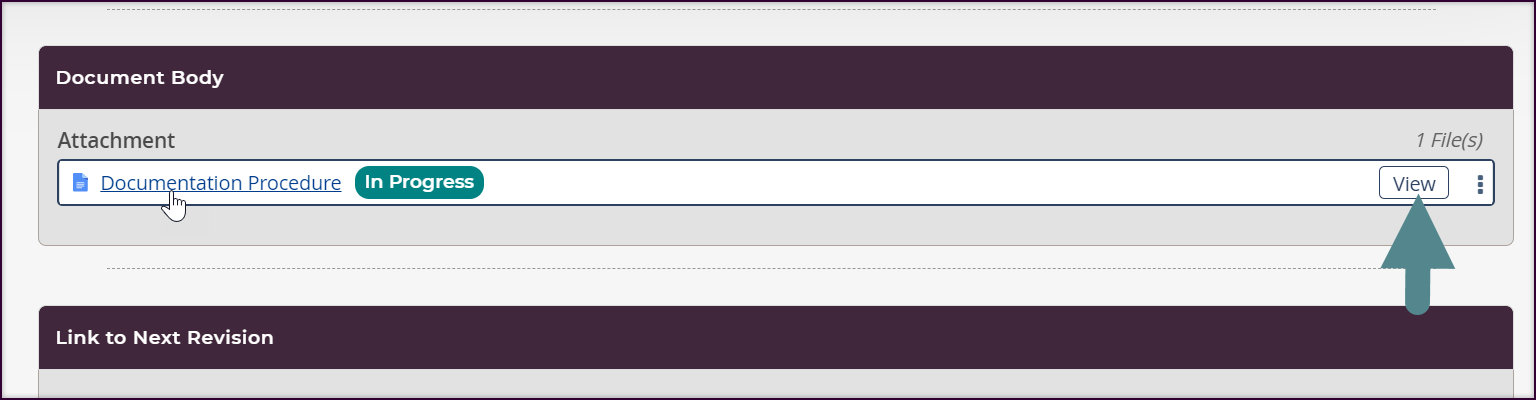
To view a Google Document in read-only mode:
- Open a Reliance document.
- Click View next to the intended Google Document on the intended attachment field. Alternatively, click directly on the Google Document link.
|
|
You will be prompted to log into your business account if you are not already logged in or if your business session has expired. |
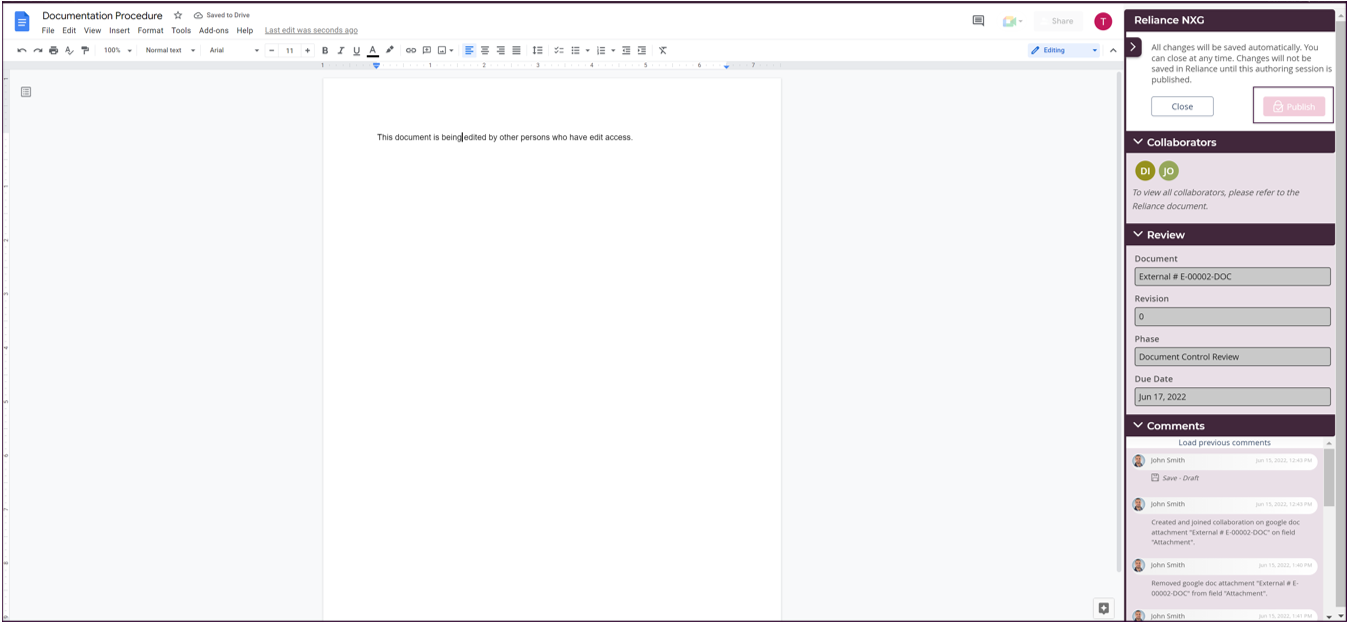
This will open the Google Document in a new Reliance tab but in read-only mode. The Publish button will be disabled.
Publishing a Google Document
- Open a Reliance document.
- Click Join next to the intended Google Document on the intended attachment field. This will open the Google Document in a new Reliance tab.
You will be prompted to log into your business account if you are not already logged in or if your business session has expired.
- Click Publish. You will be prompted to confirm publishing the document although other collaborators' work may be still in progress.
- Click Yes.
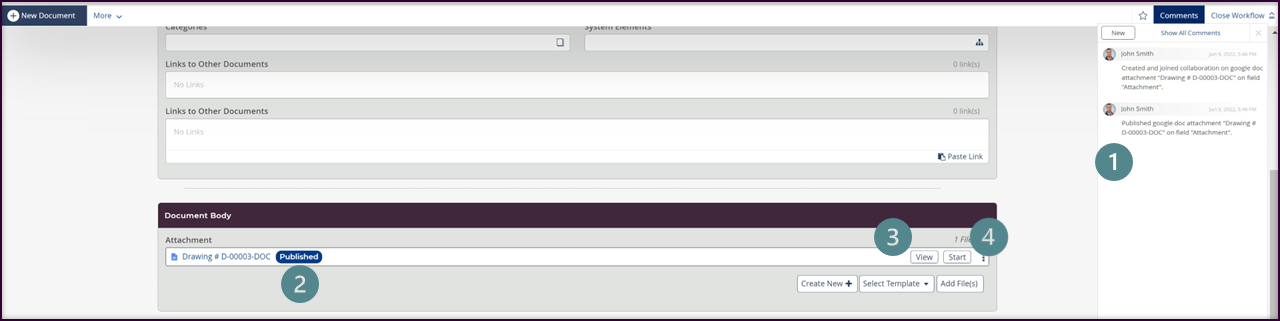
The system will close the Google editor tab and switch to the Reliance document. You will notice the following:
|
|
The system has added a comment to indicate that you published the Google Document. The comment will include the created Google Document title and the attachment field name hosting it. |
|
|
The document status shows (Published), indicating that the collaboration session has ended. |
|
|
You can click View to see the document in read-only mode. |
|
|
You can click Start to initiate a new collaboration session. |




Google Documents in a new Reliance Document Revision
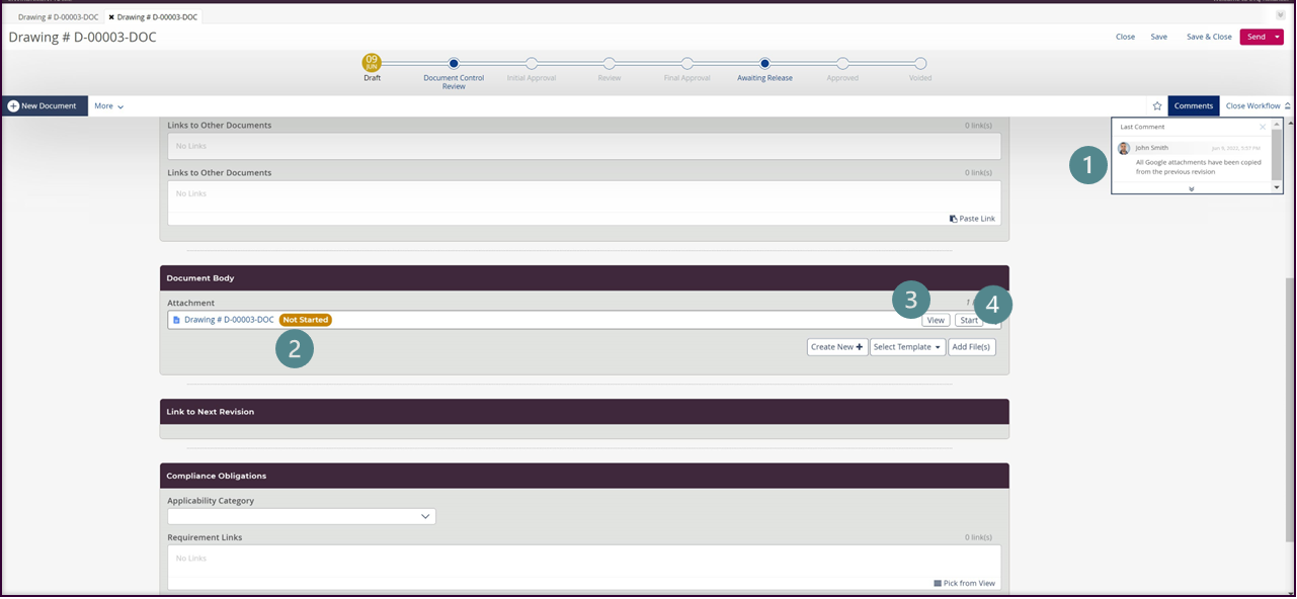
When a new Reliance document revision is created, the system will prepare copies of Google Documents in the old revision and make them available for the new revision assigned users to collaborate on. When you open the new Reliance document revision, you will notice the following:
|
|
The system has added a comment to indicate that all Google Attachments have been copied from the previous revision. |
|
|
The Google Documents status shows (Not Started), indicating no active collaboration sessions yet! |
|
|
You can click View to see the Google Document in read-only mode. |
|
|
You can click Start to initiate a new collaboration session. |




Google Docs and Reliance Features
The following features do not work with Google Docs.
- Field History.
- Office Integration.
- Download All action of an attachment field.
|
|
|