Collaboration in Microsoft 365
Microsoft 365 collaboration requires administrator setup. Contact your administrator to confirm the feature is enabled for your Microsoft 365 business email account.
Tip: Make sure your browser allows pop-ups for Reliance before you begin.
Creating a new Microsoft 365 file
You can create and collaborate directly on Word documents, Excel spreadsheets, and PowerPoint presentations in Reliance.
To create a new Microsoft 365 file:
- Open a Reliance document.
- In the attachment field, click Create New +. The Create New Collaboration Document dialog appears.
- Review the default Attachment Name field:
- If the Reliance document is saved, the default name is Document Type + Document Number + Collaboration (for example, Validation Test 001 Collaboration).
- If the Reliance document is new, the default name is Document Type + (New) + Collaboration (for example, Validation Test (New) Collaboration).
- Optionally, change the Attachment Name. You cannot use a name that matches the Reliance document’s tab name.
- Select Word, Excel, or PowerPoint from the displayed file type options.
- Click Create.
|
|
If you are not already signed in, or if your session has expired, you are prompted to sign in with your Microsoft 365 business account. |

Reliance saves the document and opens the new Microsoft 365 file in a new browser tab using the online editor (Word, Excel, or PowerPoint).
When you return to Reliance, a comment is added showing that you created the Microsoft 365 file in a specific attachment field, with a link to the new file.
Here is a short video!
Viewing and editing Microsoft 365 files
If you have read access, you can preview Word documents, Excel spreadsheets, and PowerPoint presentations in the Reliance previewer.
If you have edit access, you can open and edit the file using the appropriate Microsoft 365 editor in a new browser tab.
To preview a file:
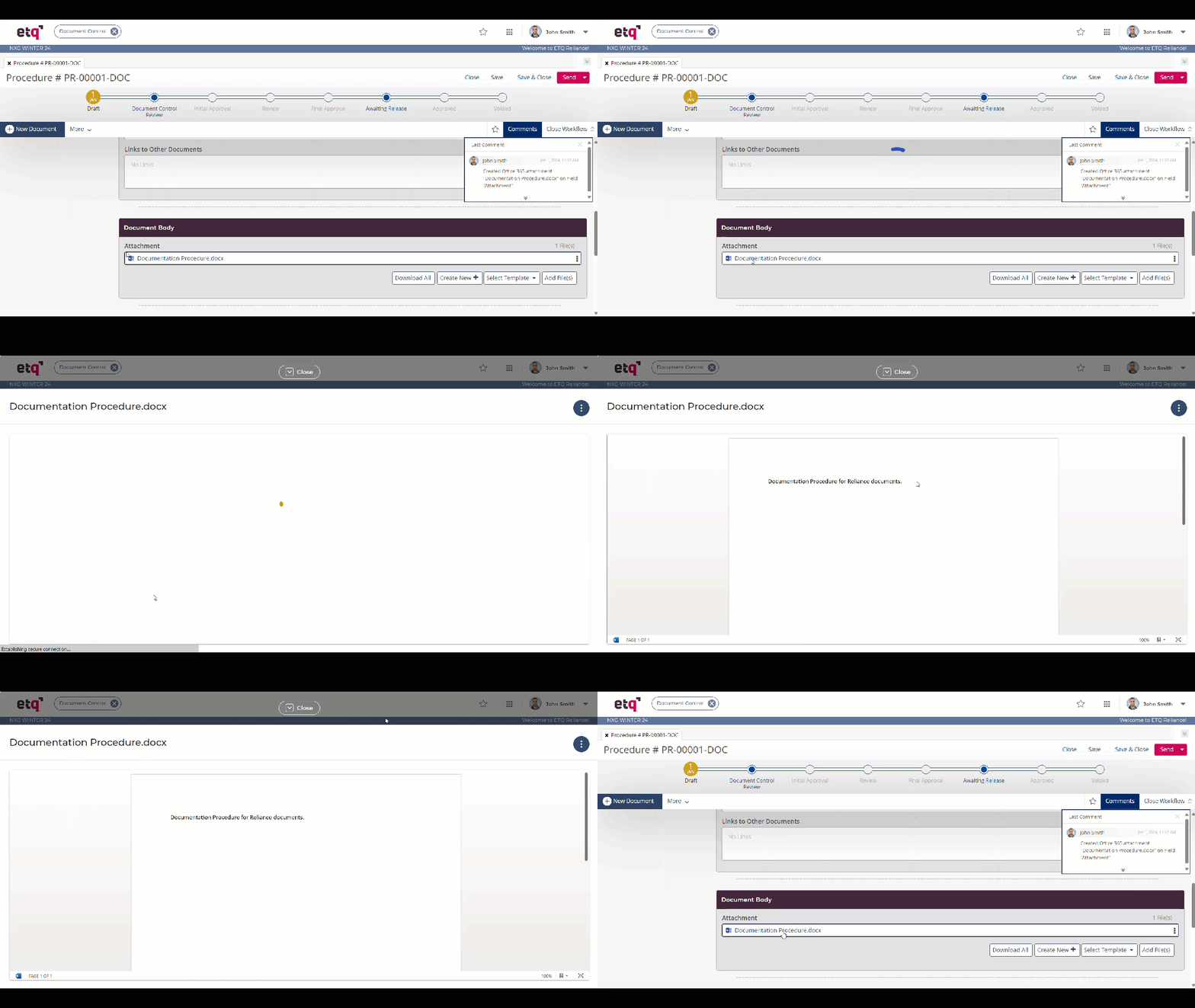
- In the attachment field, click the Microsoft 365 file link.
- The file opens in the Reliance previewer in read-only mode.
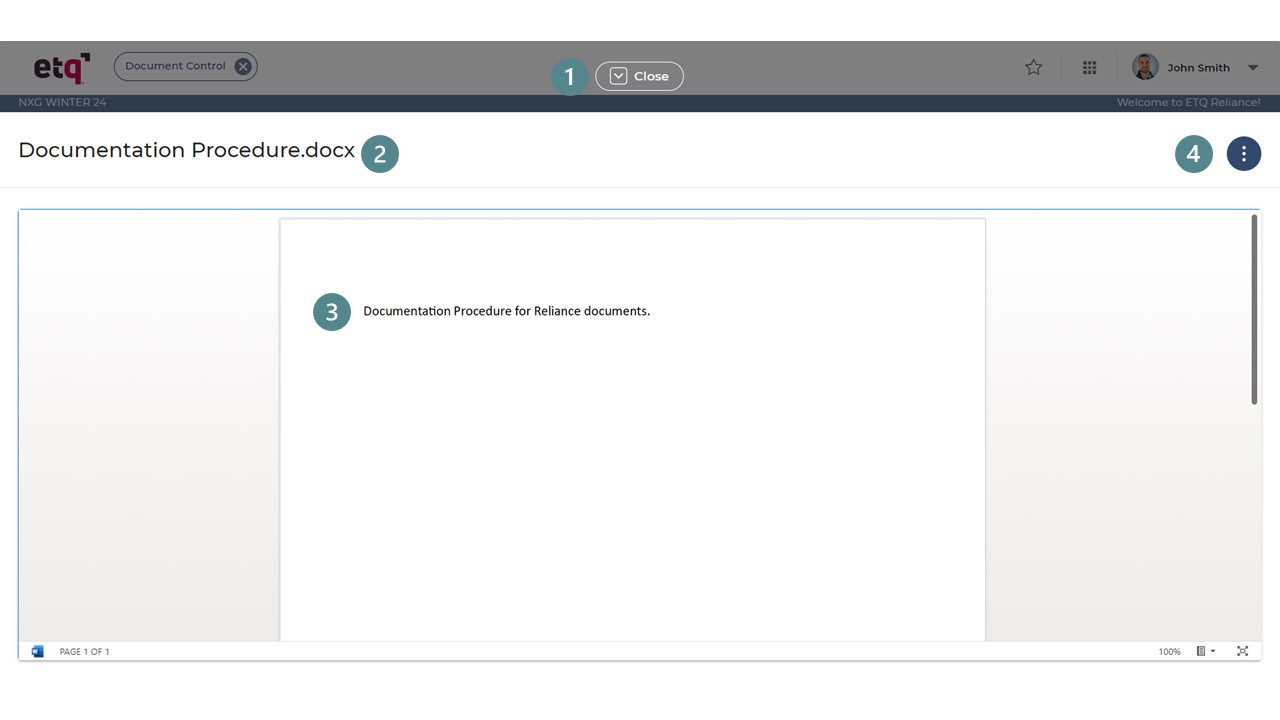
The Reliance previewer shows:
|
|
Close Action Return to the Reliance document. |
|
|
File Name Shows the name and extension. |
|
|
Content Scroll through the file in read-only mode. |
|
|
File previewer menu When you click on the
Reliance Info Edit |




 menu, the actions below will be displayed, and the menu icon will switch to a
  close action, which closes the extracted actions.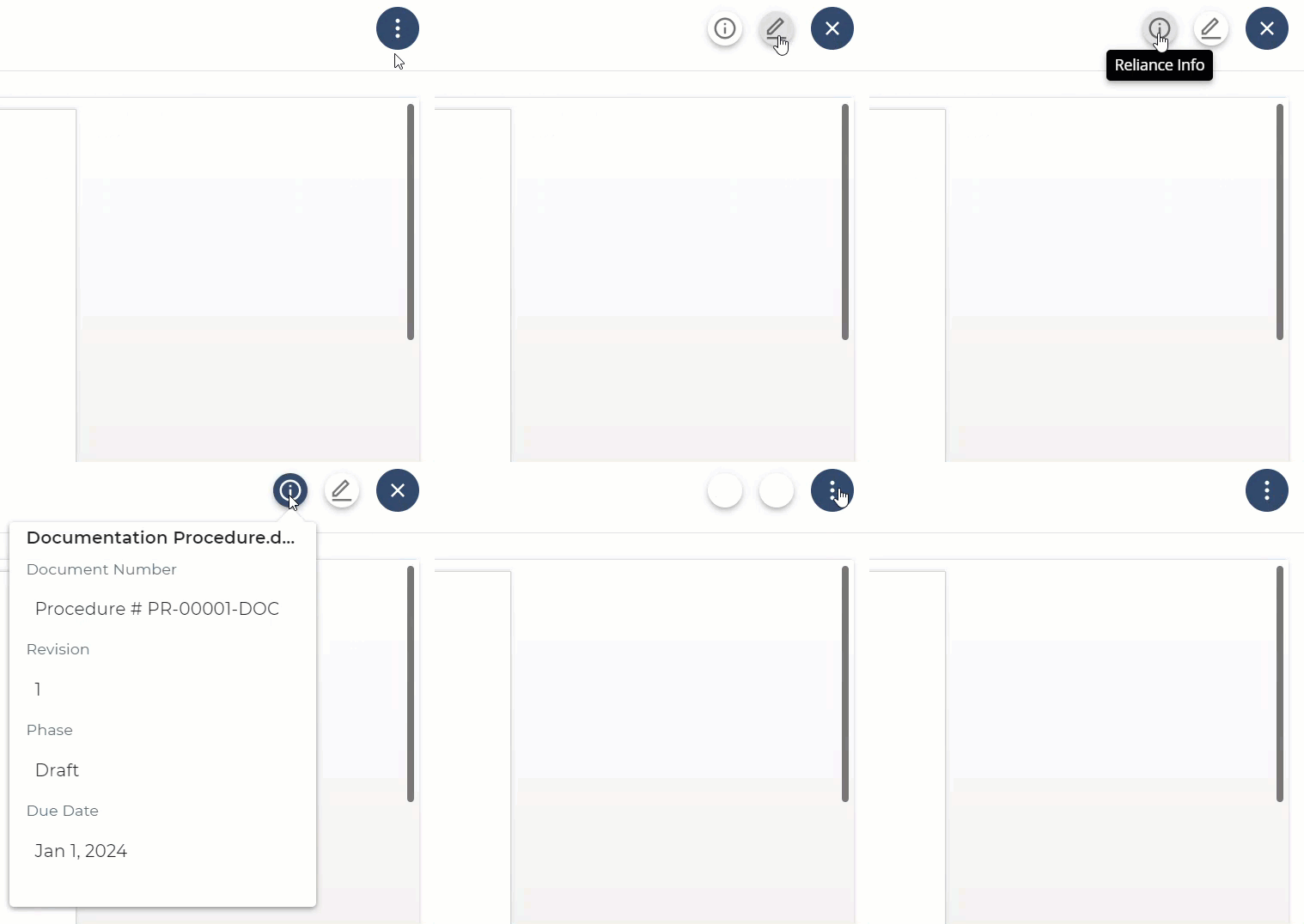
 :
:  : Displayed when
 Actions for Microsoft 365 files
Delete a Microsoft 365 File
In the attachment field, open the  menu next to a file link to:
Delete: Remove the file. Click Remove to confirm. Reliance refreshes and adds a comment about the deletion.
Note: Make sure your administrator has entered a valid email address from the configured domain in your user profile. If your email address is invalid, the system displays a validation message when you try to delete a Microsoft 365 file.
Download: Save a copy of the file locally.
See file info: View details about the file.
Restrictions:
You cannot share Microsoft 365 files by URL.
You cannot rename Microsoft 365 files in Reliance. Use the Microsoft 365 editor to rename the file.
Comments and Microsoft 365 files
The Comments section in Reliance tracks key actions on Microsoft 365 files (Word documents, Excel spreadsheets, and PowerPoint presentations).
Each comment shows the user’s avatar icon and name, the action date and time, the file name, and the parent attachment name.
The system adds comments for these actions:
Creation – when a user creates a Microsoft 365 file.
Editing – when a user opens a Microsoft 365 file in the editor, even if no changes are made.
Routing – for each Microsoft 365 file included in routing. If PDF conversion is configured for the target phase, an additional comment notes the conversion.
Deletion – when a user deletes a Microsoft 365 file.
Change request revisions – when a new Reliance document revision is created, copies of all Microsoft 365 files from the previous revision are made available in the new revision.
Restoring obsolete revisions – when an obsolete revision is restored, copies of Microsoft 365 files are prepared for the restored revision.
The system does not add comments about the following actions:
Preview
Download All
Download
Microsoft 365 Files and Reliance Features
The following features do not work with Microsoft 365 files:
Field History.
Office Integration.
PDF conversion on Save.
You will have to download 365 files, convert them to PDF, and attach them manually if you modify them during a phase configured to do PDF conversion.
|
|
|